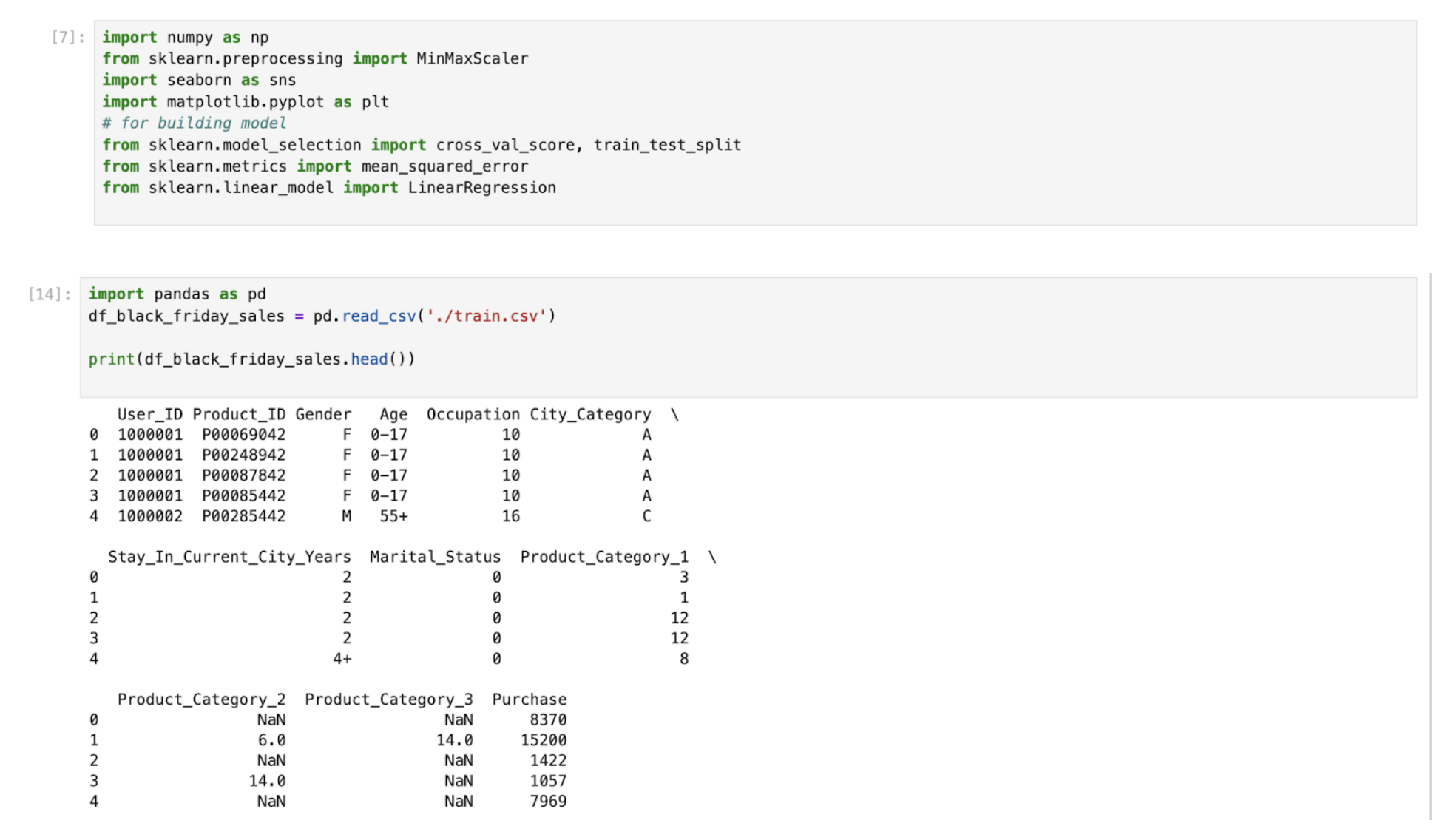
**Title: Unlocking Interactive Coding and Data Analysis with Jupyter Notebooks** Jupyter Notebooks have revolutionized the way we approach coding and data analysis, offering a versatile platform for interactive development. This open-source tool lets users create documents that combine live code, visualizations, markdown text, and equations. Whether you’re in data science, machine learning, or scientific research, mastering Jupyter can significantly enhance your workflow. Here’s a quick guide to get you started. **1. Installing Jupyter Notebook** - **Anaconda (ideal for beginners)**: Download and install Anaconda, then open Anaconda Navigator to launch Jupyter Notebook. - **Pip (for advanced users)**: If you already have Python installed, open your command line and run `pip install notebook`. **2. Navigating the Interface** Once you launch Jupyter, you'll see a dashboard that helps you create and manage your notebooks. To create a new notebook, simply select **New > Python 3**. Each notebook is made up of cells that can either execute code or display markdown for documentation. **3. Running Code** - **Execute Python Code**: Type your command in a cell and press **Shift + Enter** to run it. - **Using Markdown**: Create formatted text by converting a cell to markdown with **Esc + M**. This feature is perfect for adding clarity and context. **4. Importing and Visualizing Data** Jupyter excels in data analysis. Use libraries like Pandas and Matplotlib to import datasets, such as the Black Friday Sales dataset from Kaggle. Start by loading your libraries and dataset, and then analyze the data to extract key insights. **5. Data Visualization** Effective visualizations help simplify complex datasets. Use graphs to reveal relationships and comparisons in your data. For instance, you can create a bar plot to visualize purchase distributions or other insights. **6. Saving and Exporting Notebooks** Don’t forget to save your work often! You can export your notebooks to various formats (PDF, HTML, etc.) through the **File > Save and Export notebook as** option. **7. Best Practices** - Document your work using markdown. - Organize notebooks with clear headings and sections. - Consider version control tools like GitHub for tracking changes. - Manage output sizes if working with large datasets for better performance. **Conclusion** This guide provides a foundational understanding of Jupyter Notebooks. With this knowledge, you can jump right into creating organized, reproducible notebooks that streamline your coding and data analysis needs. **Explore AI in Business** Consider how AI can redefine your processes: automate customer interactions, set performance KPIs, choose the right tools, and start with manageable projects. If you’d like support in maximizing AI in your business, reach out to us at hello@itinai.ru or connect on Telegram, X, and LinkedIn. Let's embrace the power of interactive coding and data analysis—start your Jupyter journey today! #JupyterNotebooks #DataAnalysis #Python #AI #MachineLearning #Coding #DataScience #OpenSource #InteractiveDevelopment

No comments:
Post a Comment